If you want to get the best performance and smooth gameplay on the Sudachi Emulator for Android, it’s important to set things up the right way from the start. Before you begin, you’ll need a few basic things. your game files, along with the required system keys and firmware. Once everything is properly in place, the emulator runs much more smoothly and gives a better overall experience. Just make sure you’re using everything in a legal and responsible way, as that helps avoid issues and keeps things running reliably.
Steps to Download Sudachi Emulator Android
Follow these Three Steps to install the Sudachi Emulator Android.
1. On the Sudachi Emulator Android download page, Click the Download For Android. As shown in the picture.
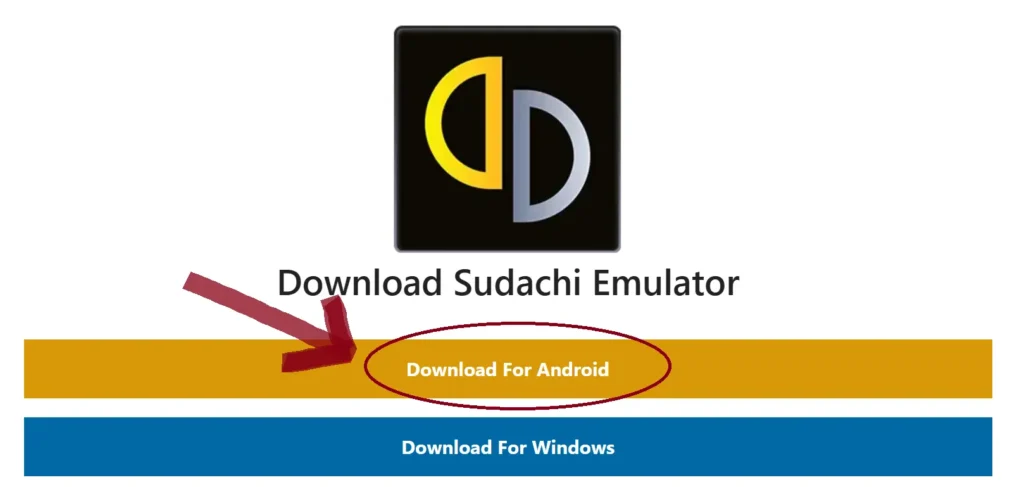
3. Sudachi Emulator APK file will be Downloaded on your Android Phone.
Installing Keys and Adding Games
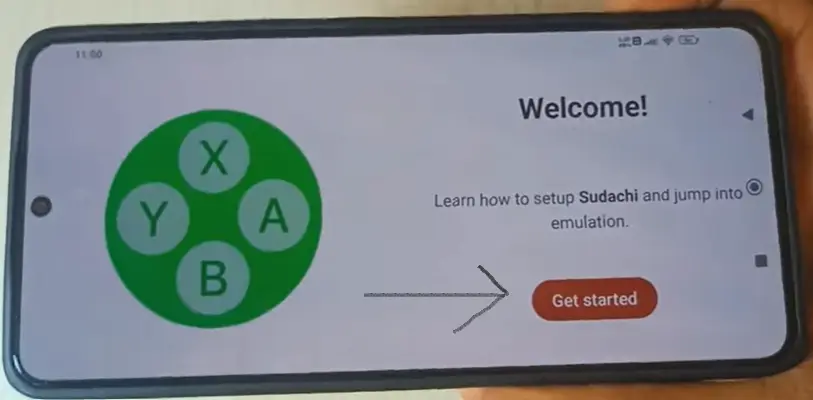
When you open the Sudachi Emulator Android for the first time, it needs to be setup. Tap the Get Started button, as seen in the picture below.
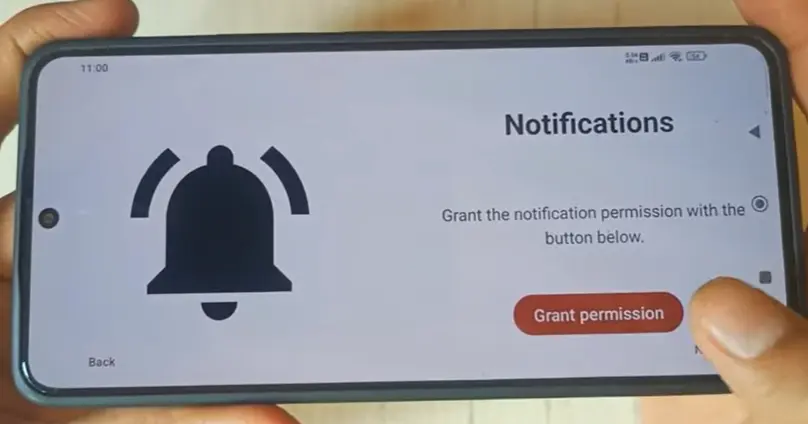
The app will ask you for specific permissions. This is important because the emulator must be able to read and save your game files, keys, and firmware. Tap Allow for permission.
Install Keys: To Install Keys, Click on Select Keys button as shown in image.
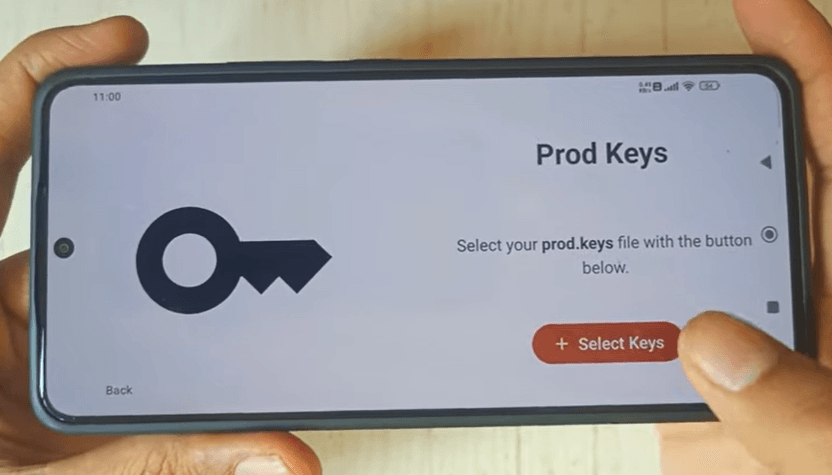
Your File Manager will open. Go to your Keys folder. Select and install Prod Keys.
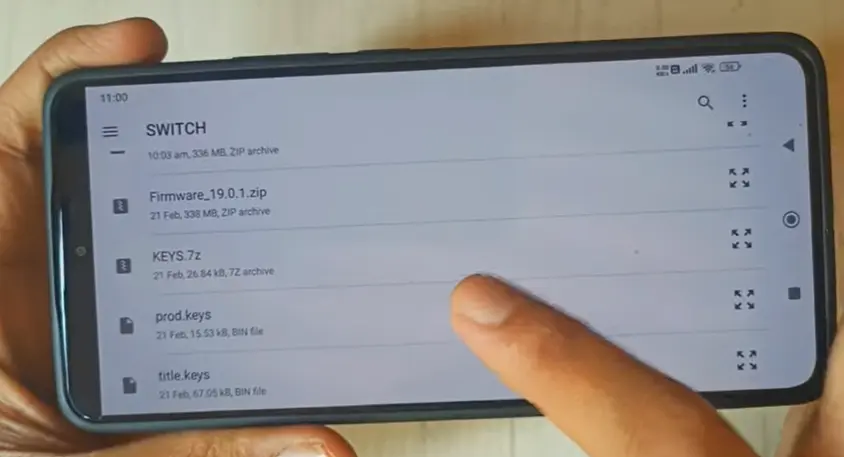
Also, repeat the same process for the Title Keys.
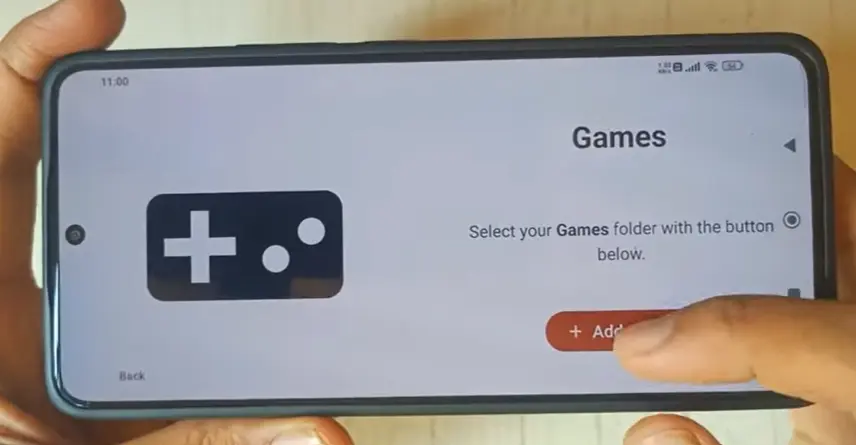
Add Games: Click Add Games. Navigate to your game folder, click Use This Folder, and click Allow. Make sure to tick Deep Scan and press OK.
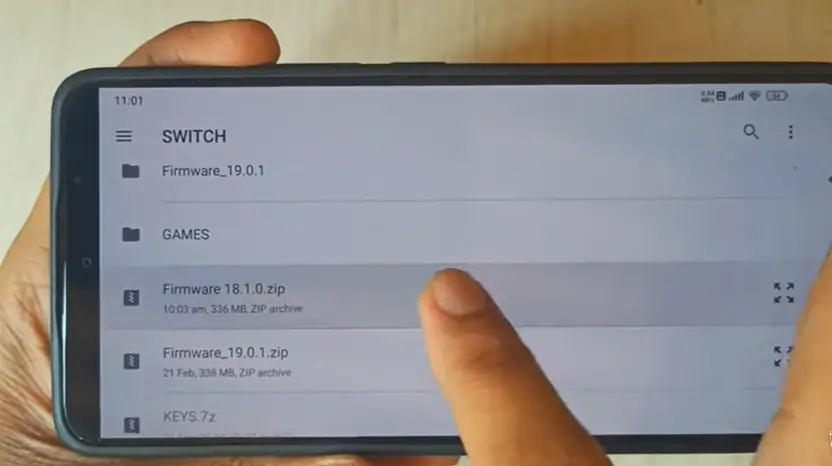
Install Firmware: Go to Settings. Click Manage Sudachi Data. Then click Install Firmware.
Important Note: Firmware Version 19 is not supported. You must install Firmware Version 18.
Performance Setting
After these setups, you must configure the settings for smooth performance. Go to Sudachi settings.
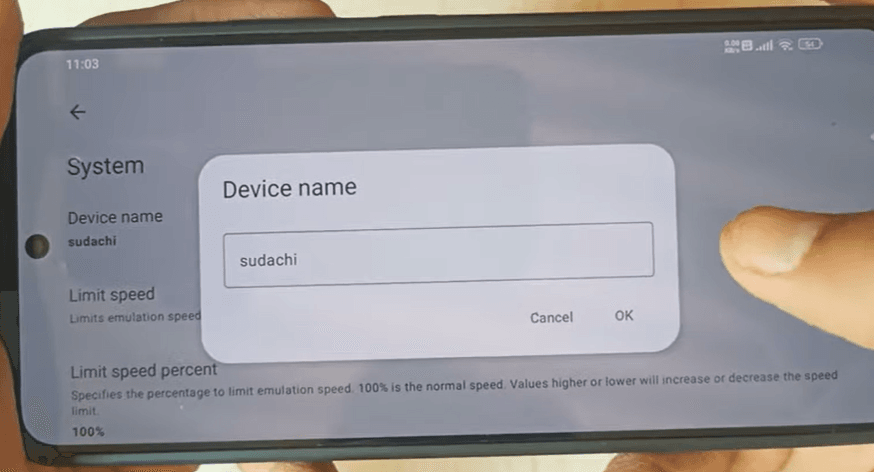
Fill the speed with the Line Speed Percentage option, i.e. keep it at 400%.

In the graphics settings keep normal the accuracy level. Resulation 0.75X(540p/810p). Also Select Stretch to Window in Aspect Ratio Option.
CPU Settings: Enable Force CPU Max Clock to ensure the emulator uses your device’s maximum processing power. Now you are ready to play.
for more query or detail please contact our quick support team at [email protected] or Whatsapp: +923170604504.